
Adjusting product prices
Following the changes to EU VAT rules for webshops, customers asked for an easy way to adjust VAT percentages for multiple products in different countries.
The added functionality does this and more. Here is a brief explanation.
Select prices
Before changing anything, select the products whose prices you want to adjust. Use categories and filters such as the current VAT percentage or a minimum or maximum price.
Open the catalogue module, then the “Adjust prices” tab in its settings.
Choose filters such as category, country or price type. In numeric filters, use < and > for “less than” and “greater than”. To select products with a price above €500 before discounts, VAT and levies, enter >500. To select German prices with 16% VAT in the historical example, choose country “DE” and VAT “16”.
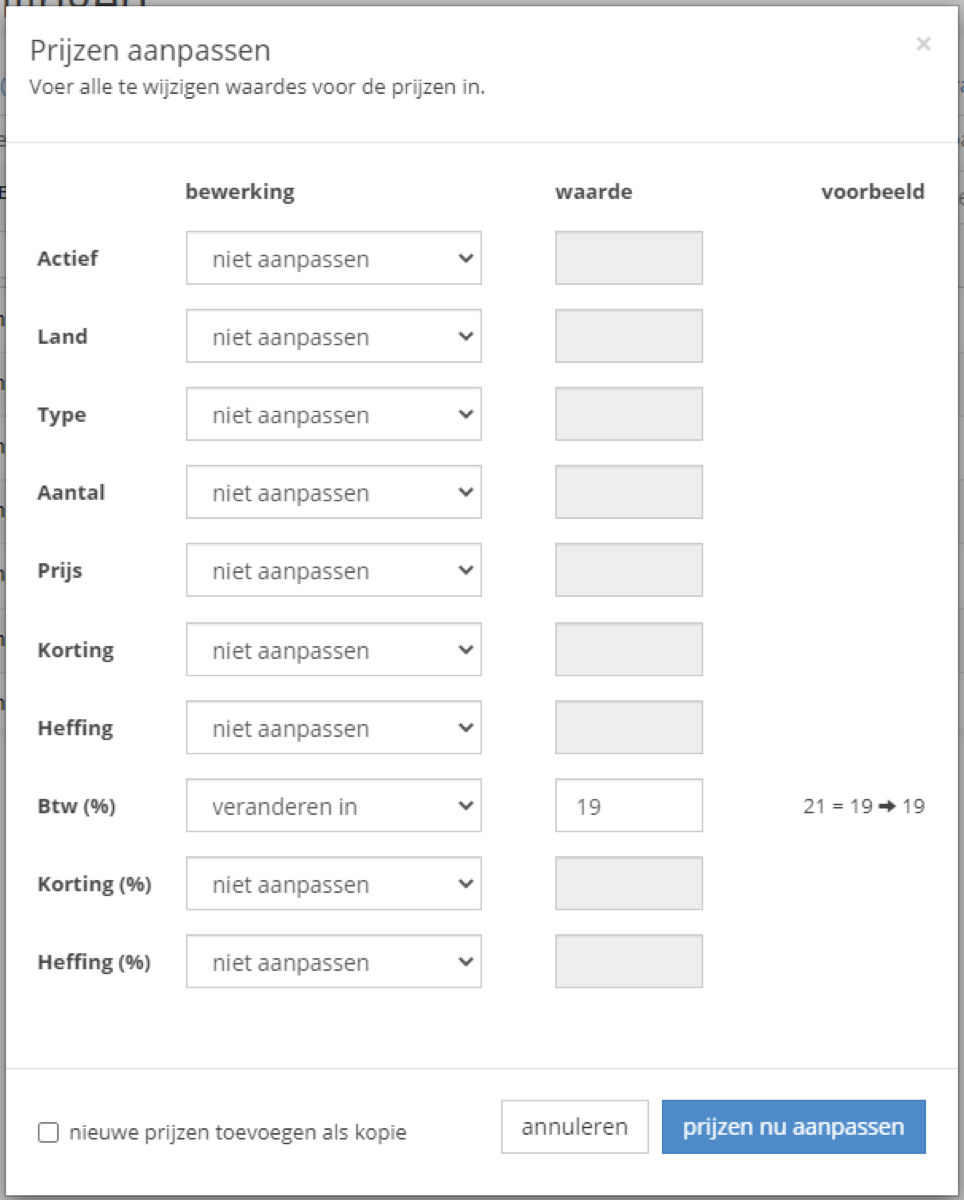
Change the VAT percentage
- Select the prices to change.
- Click “Adjust”.
- Set the VAT percentage field to replace the existing value and enter the new percentage.
- Click “Adjust prices now”.
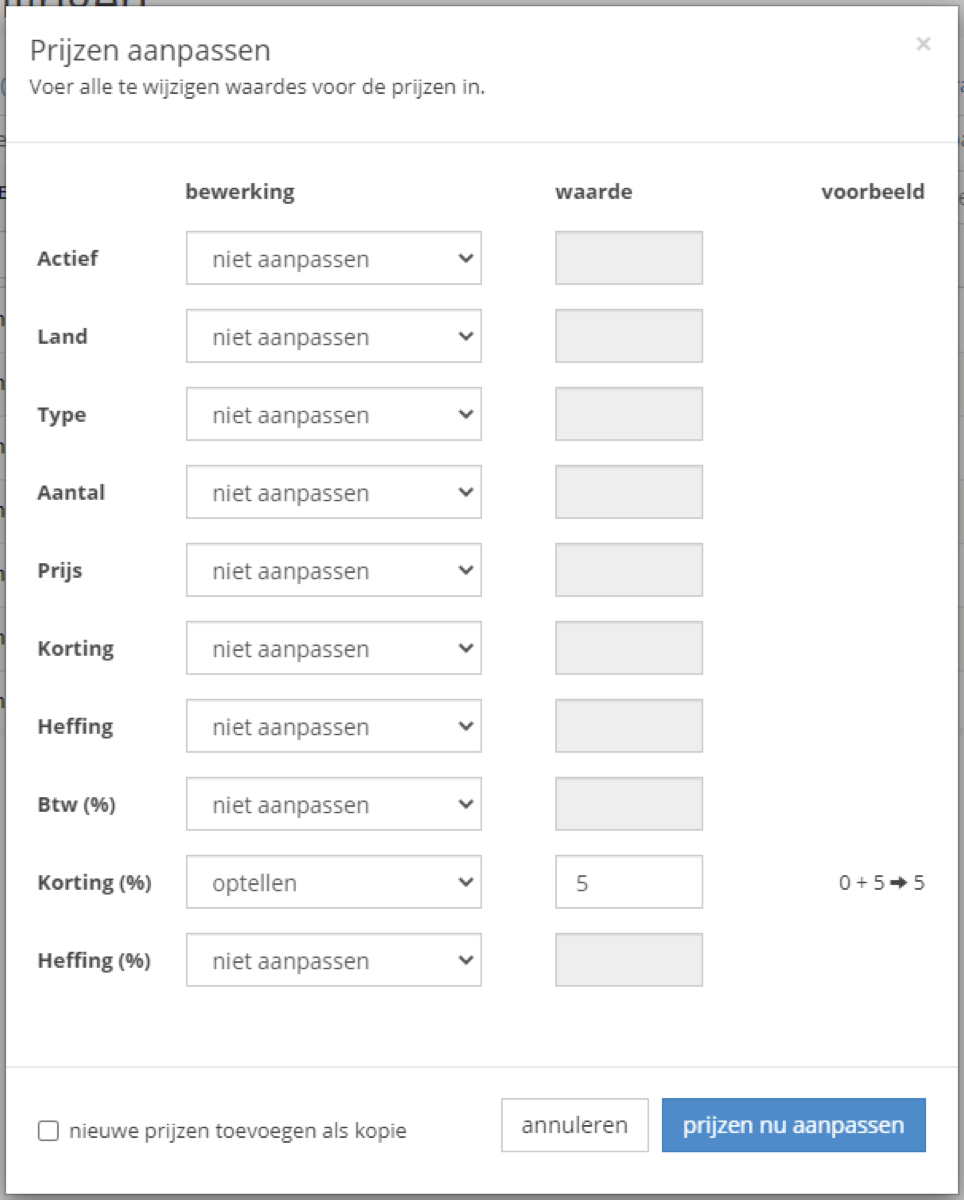
Add an extra discount
- Select the relevant prices.
- Click “Adjust”.
- Set the discount field to add five percentage points to the current discount.
- Click “Adjust prices now”.
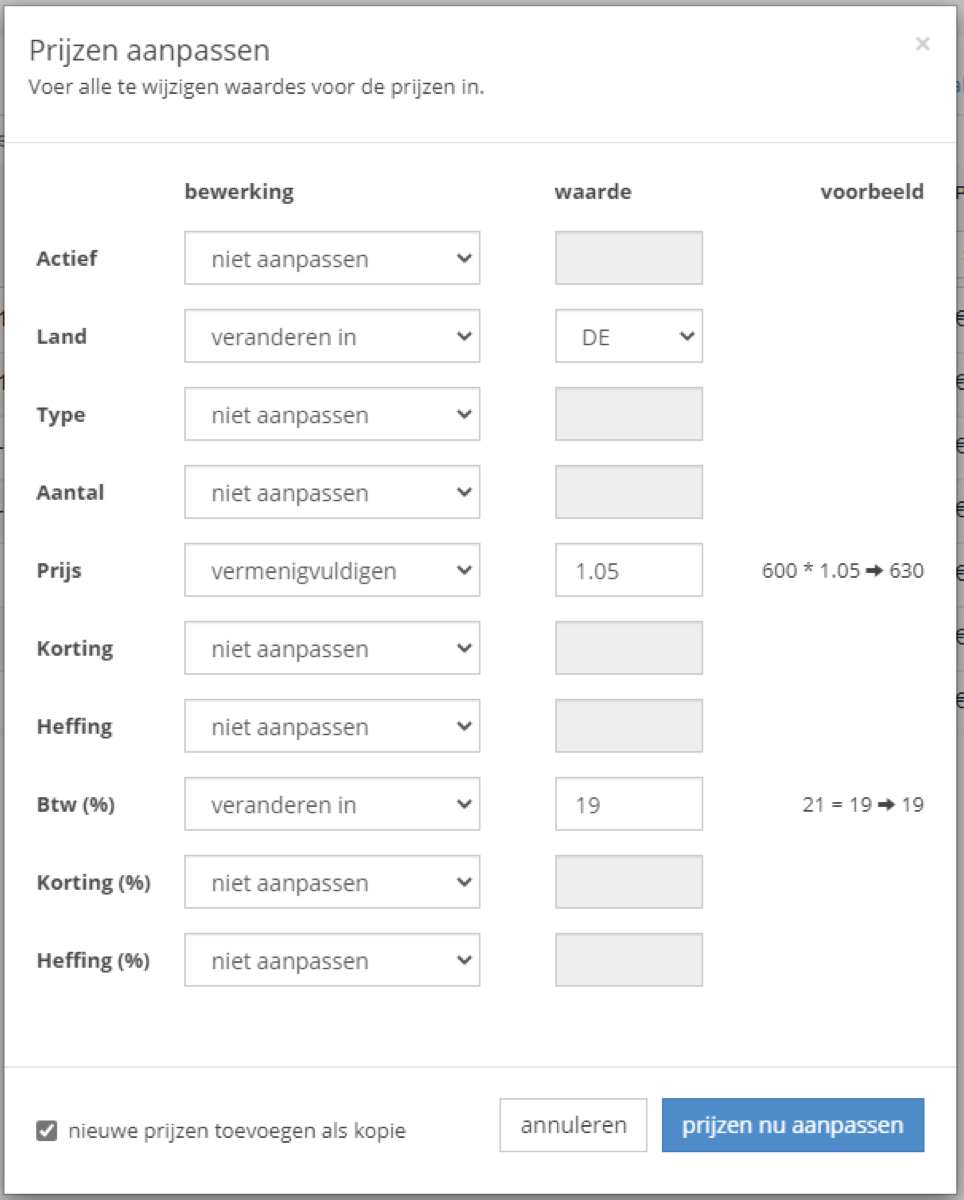
Add prices for another country
- Select the prices to use as the basis. These will be copied.
- Click “Adjust”.
- Enter the new country, adjust the amount if needed and enter the new VAT percentage.
- Choose the option at the bottom left to add prices. This creates copies and preserves the original prices.
- Click “Adjust prices now”.
Made a mistake?
The changed prices appear immediately in the list. An “Undo” button restores the previous values if something went wrong. You can use it only once for a change and only immediately afterwards.
We recommend asking us to carry out price changes to avoid problems. This feature is available from Base4 version 4.3.12. Price adjustments and updates are often included in your subscription. Contact us for help.