
Adding discount codes

You can offer customers discounts on webshop products. Our management system includes useful ways to tailor them to your needs. Open product management and click “Coupon”. If the feature is unavailable, contact us to activate it.
General settings
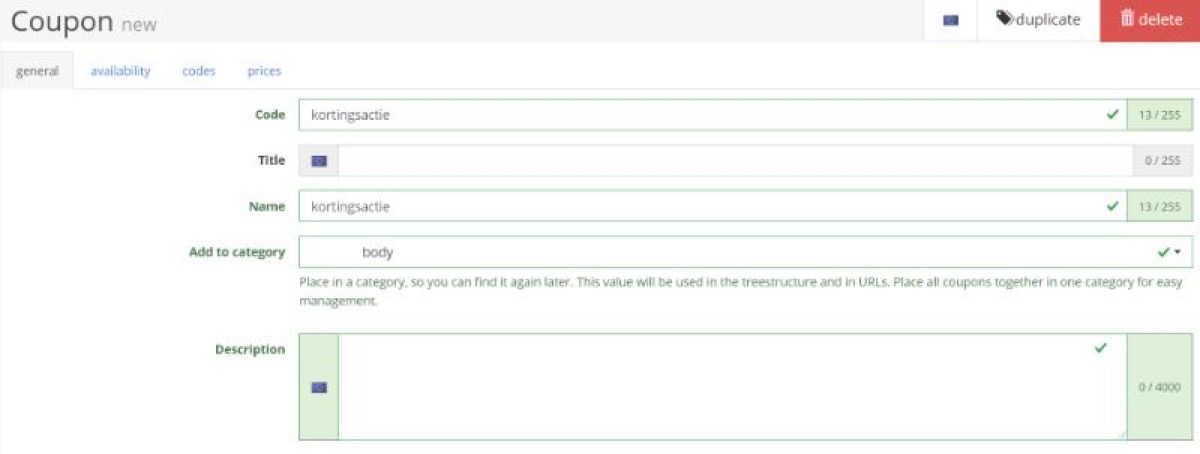
Start in the “General” tab. Give the coupon a name and select a category. The code requested here is for internal use only. Enter the actual customer discount code in the “Codes” tab.
Configure restrictions
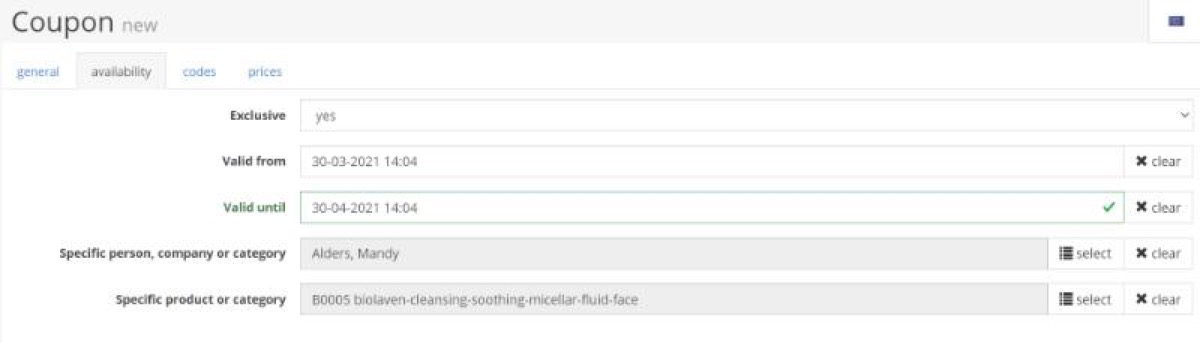
Should the coupon apply only to a particular product group? During which period is it valid? Configure these details in the next tab. You can also make a coupon exclusive, meaning it cannot be combined with other discount codes.
Codes
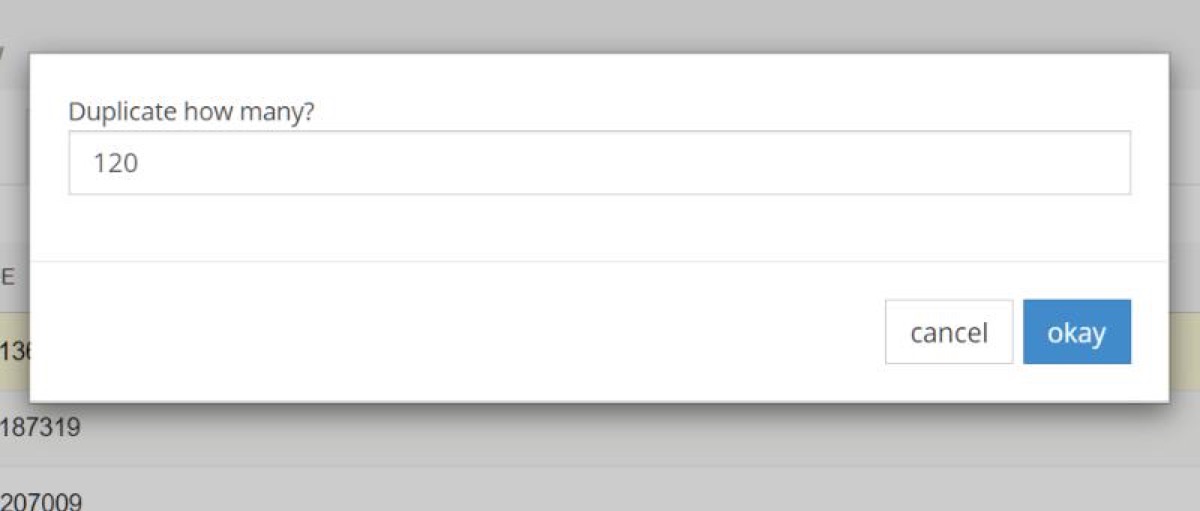
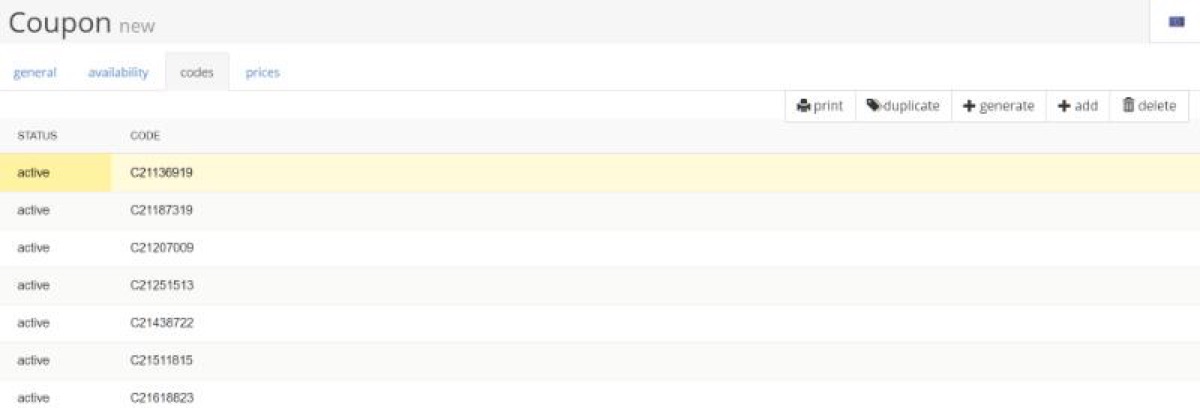
Open “Codes” to create the codes themselves. Each entry can be used once. If a code should be reusable, add it multiple times. Click “Add” and enter your code, for example “BLACKFRIDAY21”. Use “Duplicate” to copy it. With 100 copies, it can be used 100 times. Set the status to “Active” to make it available.
Set the discount amount or percentage
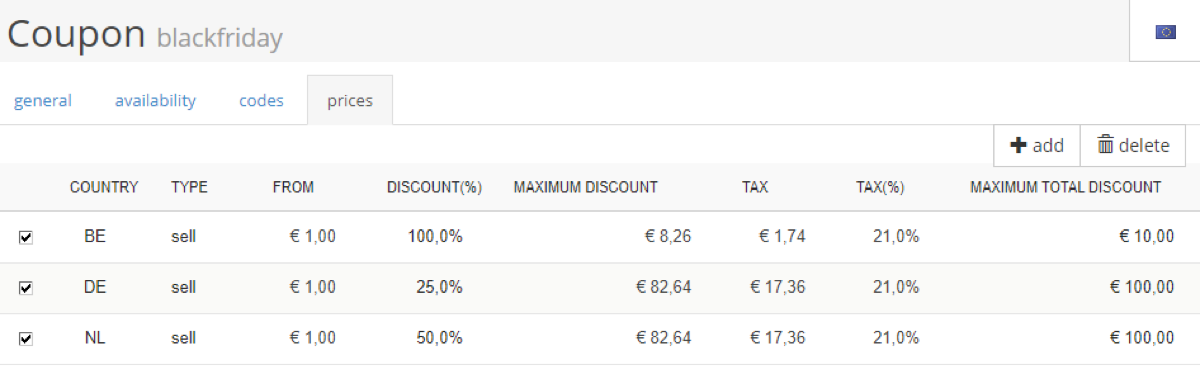
Set the discount, the minimum spending amount and the maximum total discount. You can vary these by country. In the example, customers in the Netherlands receive 50% off with a minimum spend of €1 and a maximum discount of €100. In Germany, the same code gives 25% off.
Enter the required VAT percentage too: in this example it is 21% for both countries. For a fixed discount, set the percentage to 100% and enter the desired amount in “Maximum total discount”.
How does the customer enter it?
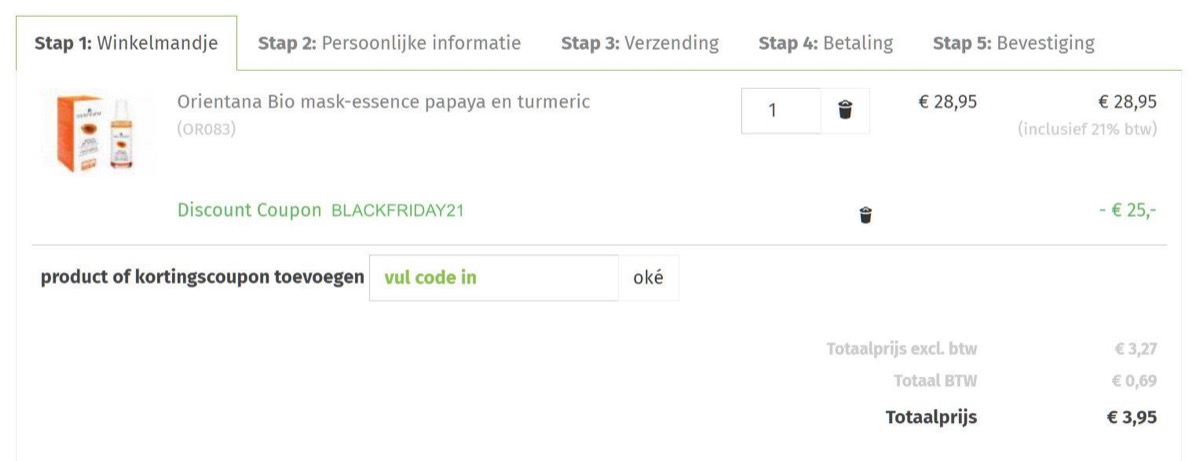
Once the coupon is ready, customers can enter it when ordering. In the example, “BLACKFRIDAY21” gives a €25 discount. If you assigned the discount to a specific customer or person, they must be logged in with that account.
This feature is usually included in your subscription. If you cannot create a coupon, contact us.