
Cropping images

Adding an image to a website sounds simple, but doing it properly requires an understanding of what you are working with.
What makes it difficult?
The challenge often lies in the image itself. It may have been taken with a professional camera or a mobile phone, or it may be a stock image from the internet. We all understand that photo quality matters, but is higher quality always better?
Image quality often comes at the expense of file size. The better the quality, the larger the file. Adding these high-quality images makes a page much larger and therefore slower. Since website speed affects search engine performance, you can see where this leads. Read our explanation of website speed too.
This suggests that lower-quality images mean a faster website and better Google results. Of course, we also want visitors arriving through Google to see an attractive page with appealing images. As so often, the best solution is a balance. Photo editing software such as Photoshop can reduce image quality while keeping the picture as attractive as possible.
No Photoshop needed
Fortunately, the BigBase management system lets anyone improve images for website use quickly and easily, without photo editing software.
We usually install this feature in your management system and configure it for your website. If it is not available, we are happy to help you set it up.
How does it work?
Suppose you have several images on your computer and want to add them to your website’s portfolio. Log in to the management system and open “Edit images”.
On the left, this part of the application lists the options configured for your website. Select an option to open the screen where you can add images from your computer.
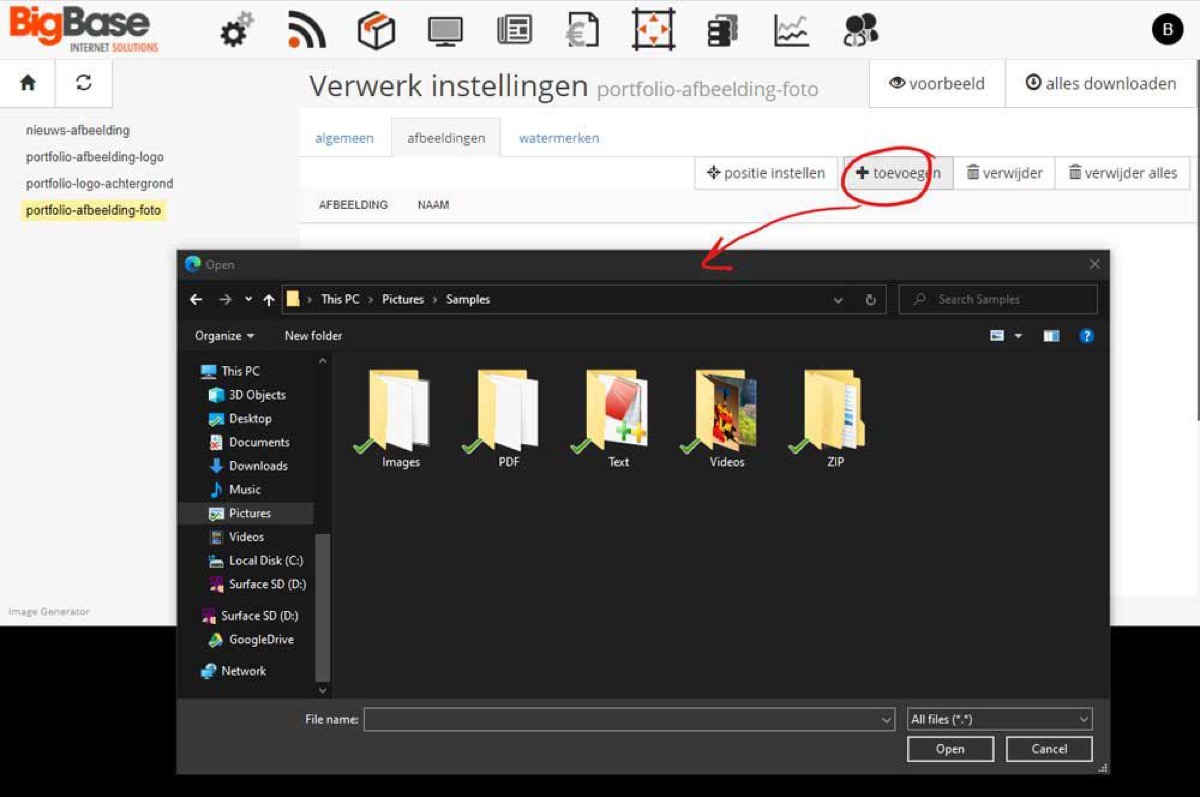
Select an image, or several images at once, and click “Open” at the bottom right. You will now see a list of all the images you added. Click an image to adjust its position: it will be cropped, often to a slightly different format. If you skip this step, the system handles it automatically.
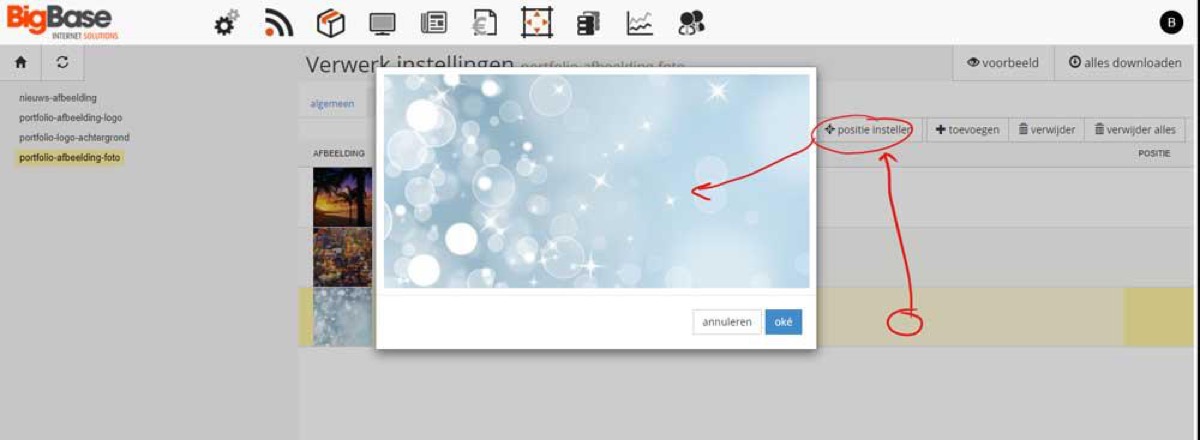
Once you have adjusted all the positions, click “Download all” at the top right. The system automatically optimises the images and downloads them to your computer, usually into your Downloads folder. You can then use the edited images on your website.
Is this how BigBase does it too?
No. This feature gives good results for everyday use without requiring much time or specialist knowledge. It is a useful solution, but professional photo editing software still produces the best results. That is what we usually use when placing images on your website for you.
Please note: this configuration is available from version 4.2.27 of the Base4 system. If you cannot find this feature, contact us. We may be able to add it or update the system to make it available.